Adding a Security Key or Passkey for Duo MFA
In addition to Duo Push, you can add a hardware security key or a passkey as a Multi-Factor Authentication (MFA) method. This guide explains what each one is and walks through adding them on Apple and on Android / Windows.
SECURITY KEYS
Security keys are small, physical hardware devices used to prove your identity and secure your online accounts. Common security keys include the YubiKey and Google Titan Key.
How they work
- You plug the device into a USB port or tap it using NFC (Near Field Communication) on your phone or computer.
- You press a small gold contact or button to confirm you are present.
- The device uses strong public-key cryptography to log you in safely.
PASSKEYS
Passkeys are a digital credential, stored on your mobile device or in a password manager, that lets you sign in to apps and websites without a traditional password, or serve as a second authentication factor.
How they work
- Cryptographic pair: A passkey is a mathematical key pair. The public key is shared with the website, while the private key stays hidden on your phone or in your password manager.
- Device unlock: You sign in by confirming your identity the same way you unlock your phone — typically a fingerprint, face scan, or PIN.
- Bound to the site: A passkey only works for the specific website or app that created it, which makes it resistant to phishing.
BEFORE YOU START
Adding a security key is straightforward: methods vary slightly by manufacturer, but you generally insert the key when prompted and press the contact or button.
Adding a passkey from a mobile device is a bit more involved, and the steps differ between Apple and Android / Windows. Both platforms are covered below.
ADDING A SECURITY KEY
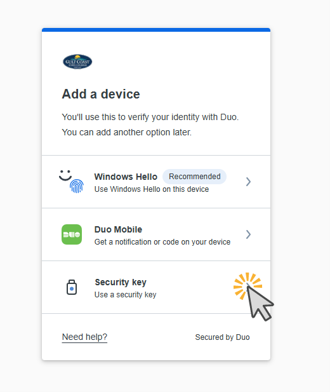
On the Duo Add a device screen, choose Security key.
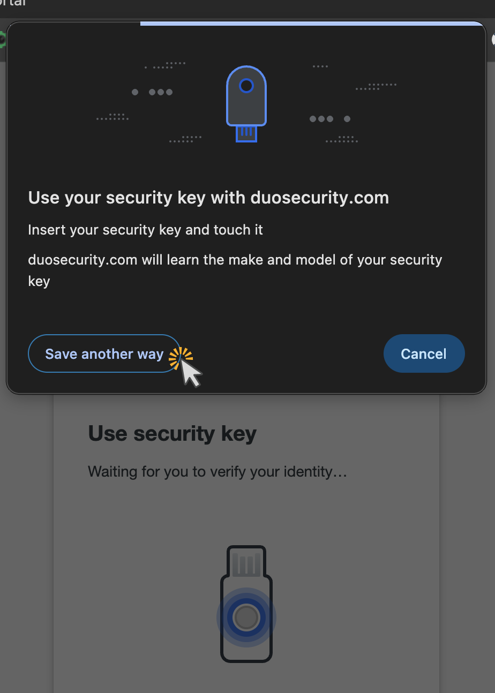
Duo prompts you to insert your security key and touch it. Insert the key into a USB
port and press the contact or button when it lights up.
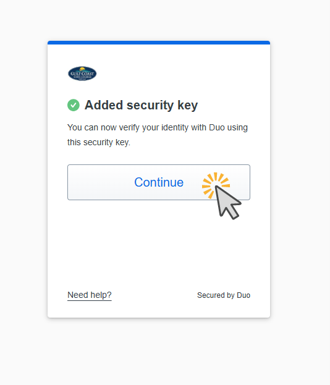
Note: Duo groups passkeys under the “Security key” method, so a completed passkey may be labeled “Added security key.” That is expected.
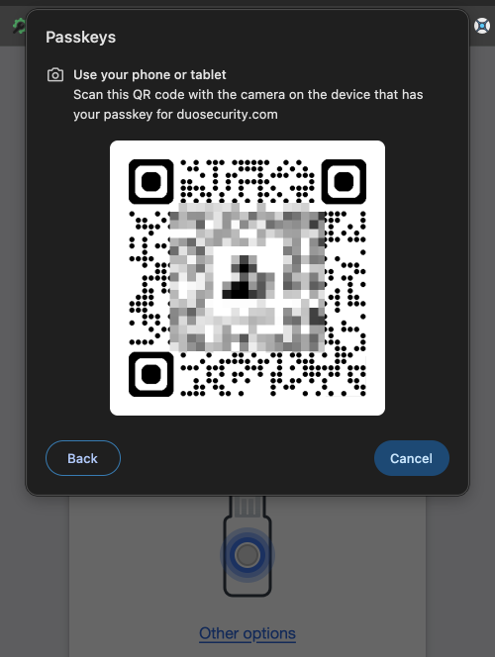
On a Mac, you are first prompted to insert a physical security key. If you would rather save a passkey to your Apple (iCloud) Keychain, click Save another way, then choose Use a phone or tablet.
Bluetooth is required. Using a phone or tablet requires Bluetooth to be turned on for both devices. Bluetooth is used only to confirm the two devices are physically near each other — your passkey is not transferred and never leaves your phone or tablet.
Open the camera on your phone or tablet and scan the QR code shown. Tap the prompt in the camera window to create and save the passkey.
That’s it — you’ve added a passkey to your Apple Keychain.
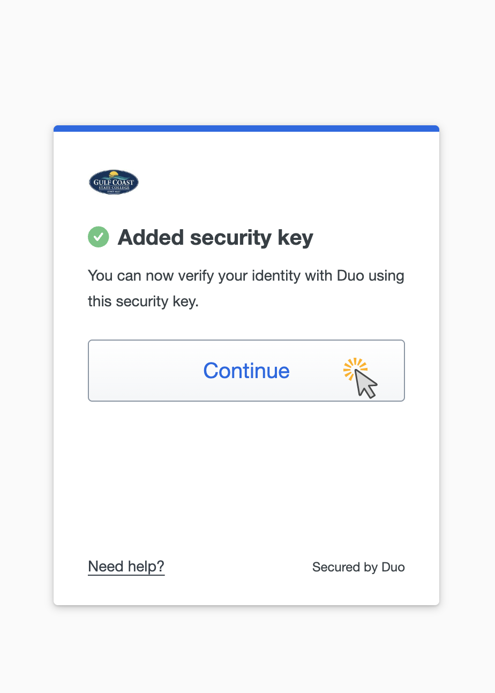
Because Apple Keychain syncs across your Apple devices, this passkey will now be offered
when you sign in from a Mac as well.
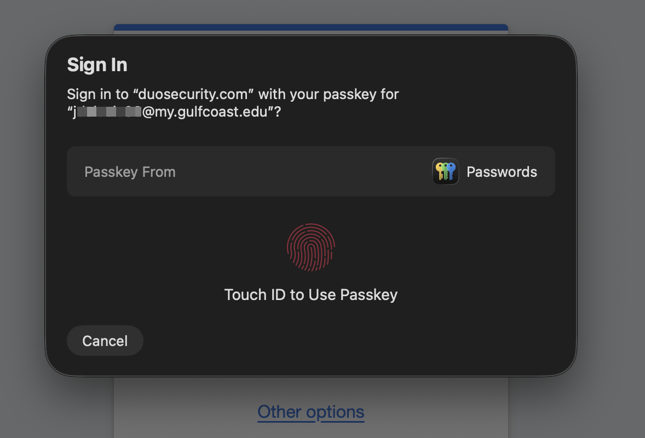
Optional: use a phone or tablet passkey when signing in
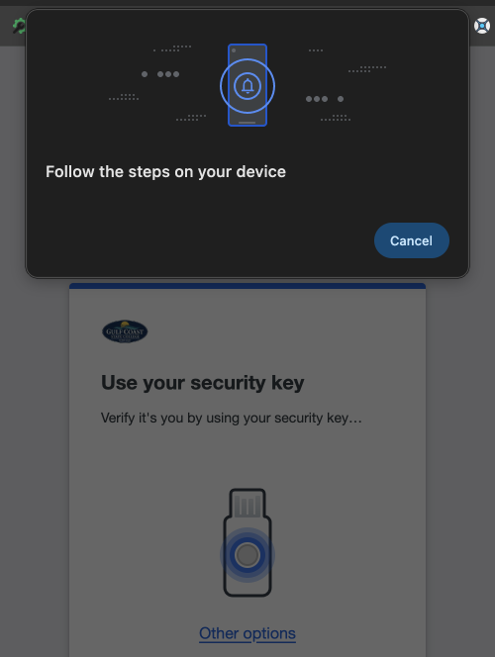
When signing in, you can choose to use a passkey stored on your phone or tablet by selecting Use a phone or tablet and scanning the QR code.
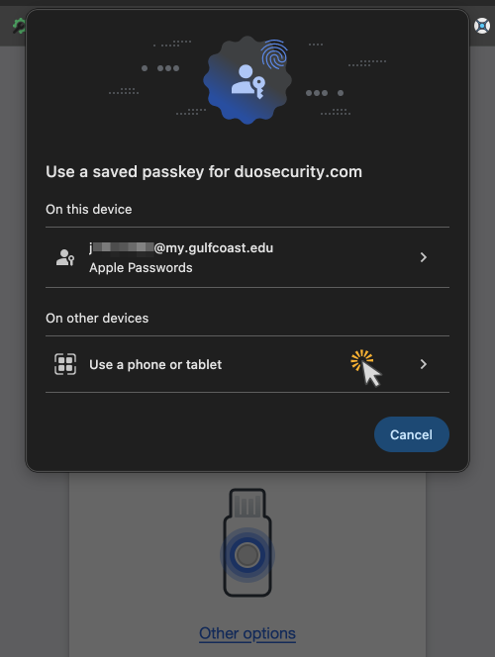
Bluetooth is required. Using a phone or tablet requires Bluetooth to be turned on for both devices. Bluetooth is used only to confirm the two devices are physically near each other — your passkey is not transferred and never leaves your phone or tablet.
Open the camera on the mobile device that holds the passkey and scan the QR code.
After scanning, follow the steps on your device to complete authentication.
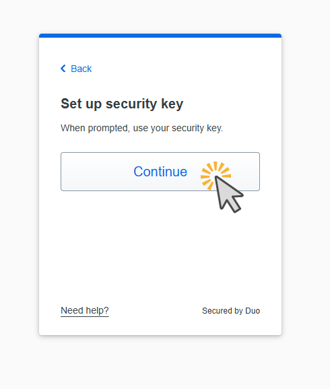
Click Continue.
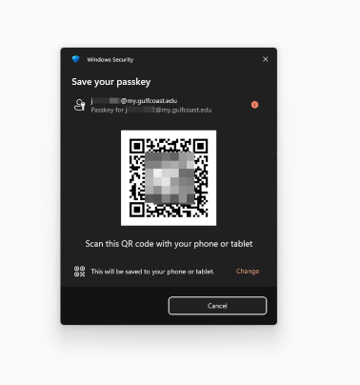
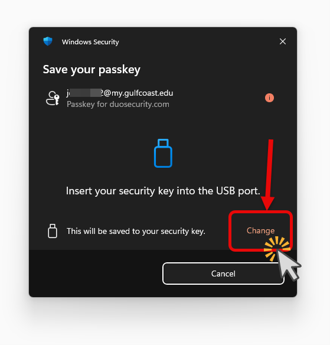
Windows prompts you to insert a security key. To save the passkey somewhere else instead,
click Change.
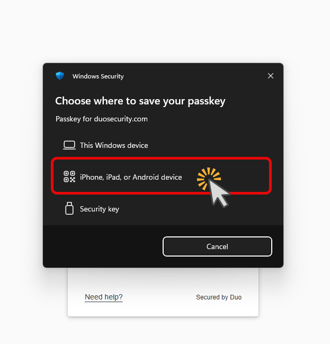
Choose the iPhone, iPad, or Android device option.
Bluetooth is required. Using a phone or tablet requires Bluetooth to be turned on for both devices. Bluetooth is used only to confirm the two devices are physically near each other — your passkey is not transferred and never leaves your phone or tablet.
Open the camera on your phone or tablet and scan the QR code. Tap the prompt in the camera window to add the passkey.
That’s it — you’ve added a passkey to your Android device. Depending on how your Android is set up, the passkey may live only on the device or may sync into your Google Password Manager.
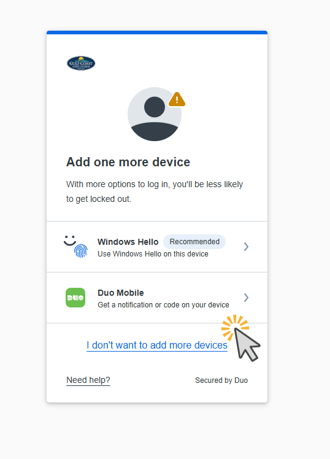
When you are finished, you can add another device or click I don’t want to add more devices.